



Dubai’s public transport system has become increasingly digital, and Samsung Wallet users can now enjoy the convenience of tapping their phones instead of carrying a physical Nol card. If you’ve been wondering how to add a Nol card to Samsung Wallet, this guide covers every step, requirement, and tip for a seamless experience. Whether you’re a daily commuter or an occasional traveller, digitising your Nol card ensures faster access to metros, buses, and trams.
In this guide, you’ll find:
- What You Need Before You Start
- Method 1: Add Nol Card Directly Inside Samsung Wallet
- Method 2: Digitise Physical Nol Card in Nol Pay, Then Use With Samsung Wallet
- How to Use Nol in Samsung Wallet at Gates and Buses
- Managing and Recharging Your Digital Nol Card
- Device & Region Compatibility
- Troubleshooting Common Issues
- Key Takeaways
- Frequently Asked Questions (FAQs)
What You Need Before You Start
Before attempting to add your Nol card to Samsung Wallet, it’s important to ensure you have all the necessary requirements in place. Missing even one of these can prevent the setup from completing successfully.
Eligibility & Requirements
- Compatible phone: A Samsung Galaxy device with NFC and Samsung Wallet support, such as the Galaxy S22/S23/S24 series, Note10+, Z Fold/Flip series, or select A series models.
- Location/region: Samsung Wallet transit features (Nol) are available only in supported markets, for example, the UAE CSC. Users with an India CSC may not see the transit card option.
- Apps needed: The latest versions of Samsung Wallet and Nol Pay apps must be installed and updated.
- NFC: NFC must be enabled; for gate payments, it should be switched on.
Method 1: Add Nol Card Directly Inside Samsung Wallet
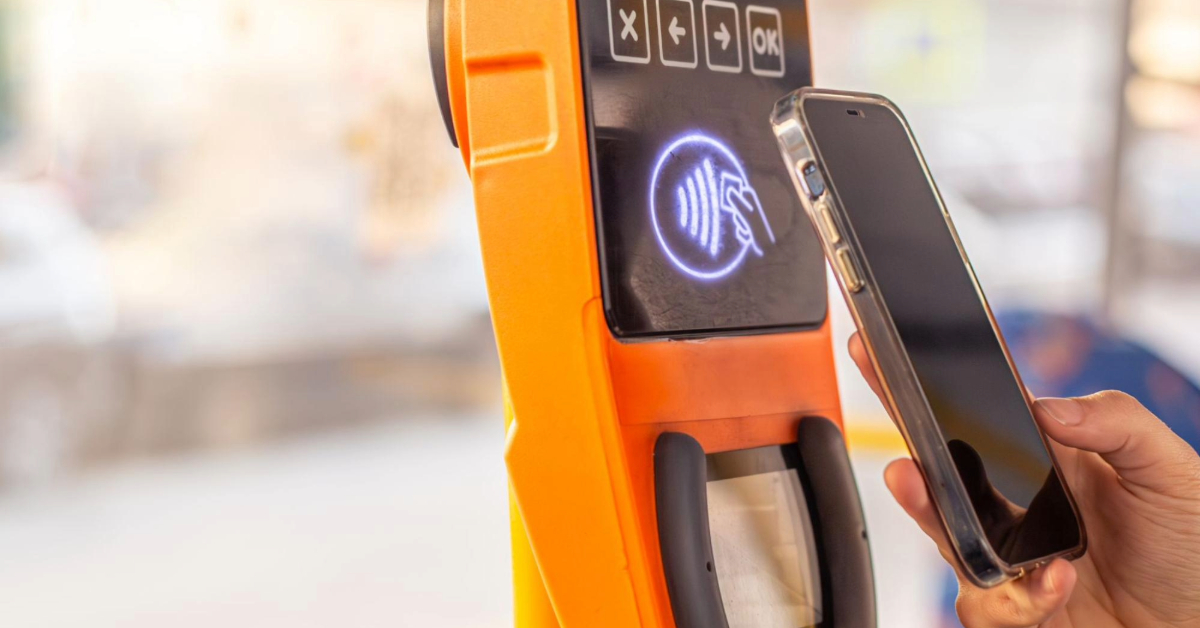
This method is the quickest route if you see the “Transit cards” → “Nol Card” option.
Quick Steps for Direct Addition
- Open the Samsung Wallet app on your Galaxy device.
- Tap “All” or navigate to your cards list, then select “Transit cards”.
- Choose “Nol Card” from the available options.
- Follow the on-screen instructions:
- Agree to the terms and conditions.
- Select your card type (Silver or Gold).
- Complete any required verification or linking steps.
- Once the setup is finished, your Nol card will appear as a transit card in Samsung Wallet and can be used immediately by tapping your phone at RTA readers.
When This Method Works Best
Direct addition works best for devices purchased or activated in the UAE or other supported regions. You should see Transit cards and Nol Card listed under Samsung Wallet → Add card. If this option is missing, the alternative Nol Pay method can be used.
Method 2: Digitise Physical Nol Card in Nol Pay, Then Use With Samsung Wallet
If your device does not support the direct method, or if the transit option is not visible, you can first digitise your physical Nol card via the Nol Pay app.
Step 1 – Digitise Your Physical Nol Card
- Install and open the Nol Pay app from your app store.
- On the home screen, tap “Get my Nol card” (or “Get your Nol card”).
- Select “Digitise Physical Nol Card”.
- Read the notice confirming that only Silver and Gold cards can be digitised, then tap Next.
- Choose your card type (Silver or Gold) and confirm any applicable fee if prompted.
- Place your physical Nol card on the back of your Samsung phone so NFC can read it. Enable NFC if prompted.
Wait while the card data and balance are transferred. - Once the reading is complete, tap Continue to activate your digital Nol card.
- Wait a few minutes for the digital Nol card to be issued; you will receive a notification once it is ready.
Important: After digitisation, the physical Nol card will no longer be usable; only the digital Nol card on your phone will work.
Step 2 – Use the Digitised Nol Card With Samsung Wallet
Samsung refers to this process as adding a “digital Nol card to your Samsung Galaxy”, allowing tap‑to‑pay at RTA gates and merchants that accept Nol.
On supported devices and in enabled regions, the digitised Nol card integrates with Samsung Wallet, letting you tap your phone at gates without opening any app, just like a regular transit card.
Community reports note:
- First, digitise your physical Nol card via the Nol Pay app.
- Once digitised, the Nol card functionality appears in Samsung Wallet as a transit option (where supported).
Alternative (If Transit Option Is Not Visible)
If the Transit / Nol Card option does not appear in Samsung Wallet (common on phones with India CSC):
- Digitise your Nol card in the Nol Pay app as described above.
- Open the Nol Pay app and tap your phone on the gate reader to pay.
This method still allows your Samsung phone to function as a Nol card, but via the Nol Pay app rather than native Wallet transit integration.
How to Use Nol in Samsung Wallet at Gates and Buses
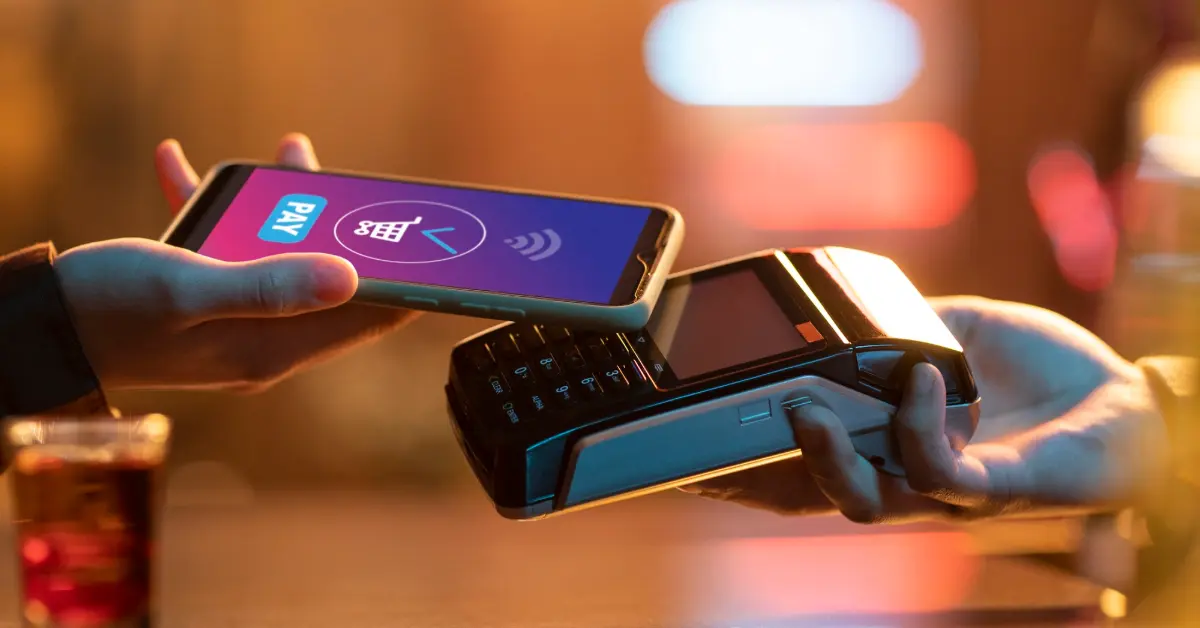
Using your Nol card on public transport is straightforward once digitised.
At Metro Gates, Buses, and Trams
To use your digital Nol card for public transport, follow these guidelines:
- Enable NFC: Make sure NFC is turned on in your phone settings, as it is required for contactless reading.
- Using Nol via Samsung Wallet:
- Simply tap the back of your Samsung phone on the Nol card reader at entry or exit gates.
- You typically do not need to unlock your phone for “express transit” on supported devices. Some users report it even works when the phone is switched off using power‑reserve mode.
- Using Nol via Nol Pay app (if Wallet transit option is unavailable):
- Open the Nol Pay app before tapping your phone on the reader.
- The fare will be deducted from your digital Nol balance.
Mobile Data or Internet Requirements
- Offline use: The Internet is not required for gate payments. The digital Nol card works offline once it is provisioned on your device.
- Online use: Data or Wi‑Fi is only needed for tasks such as initial setup, checking balances online, or recharging through the app.
Managing and Recharging Your Digital Nol Card
Keeping track of your card balance and recharging it is easy.
Checking Balance & History
- Open Nol Pay to view your remaining balance, recent trips, and card status.
- Samsung Wallet may show basic balance info, but detailed history requires the Nol Pay app.
Recharging Your Digital Nol
- Recharge via Nol Pay using linked bank cards or other supported methods.
- Top-up at RTA-supported channels, kiosks, or online portals.
- Note: Bus stations typically do not support Nol recharges.
Device & Region Compatibility
Supported Samsung Models
- Flagship devices: Galaxy S24 Ultra, S24+, S24, S23 series, S22 series, S21 series, Note10 family, S20 FE, S23 FE.
- Foldables: Galaxy Z Fold5/Fold4/Fold3, Galaxy Z Flip5/Flip4/Flip3.
- A series: Selected models such as Galaxy A80 and A71.
Regional Limitations & CSC Issues
- UAE-market phones generally support Nol in Samsung Wallet fully.
- India CSC phones may not see the transit card option; digitisation via Nol Pay remains the alternative.
Troubleshooting Common Issues
Even with a correct setup, minor issues may arise.
Transit Cards / Nol Card Not Showing
- Ensure Samsung Wallet is updated.
- Confirm your phone’s region/CSC supports Nol transit (e.g., UAE).
- Verify your device model is compatible.
- If still missing, use Nol Pay only to digitise and pay.
NFC Not Reading Nol at Gates
- Enable NFC in settings.
- Tap the back of your phone where the NFC antenna is located (usually upper-middle).
- Ensure the digital NOL is set as the default transit card if multiple cards exist.
Physical Nol Still Being Charged
- After digitisation, the physical card should be inactive.
- If charges persist, recheck the Nol Pay app or contact RTA support.
Key Takeaways
You can add a Nol card to Samsung devices through two main methods: either directly inside Samsung Wallet by navigating to Transit cards → Nol, or by first digitising your physical card using the Nol Pay app. Only Silver and Gold Nol cards are eligible for digitisation, and once the process is complete, the physical card becomes inactive.
On supported UAE devices, Nol in Samsung Wallet functions like a true transit card, simply tap your phone at RTA gates, often without needing to unlock it. No mobile data is required to pay fares, as the digital Nol works offline once it has been added to your phone. It is important to note that region or CSC settings matter; some users, such as those with India CSC devices, may not see the Nol transit option in Samsung Wallet and will need to use the Nol Pay app directly.
Frequently Asked Questions (FAQs)
No. Only Silver and Gold cards are supported for digital conversion.
No. Once digitised, the physical card is inactive.
For UAE-supported devices, no app needs to be opened; simply tap. If using Nol Pay without Wallet integration, open the app before tapping.
Yes. Some devices support a transit/pass power-reserve mode, allowing offline payments even when switched off.
Check your device CSC and region. If unsupported, use the Nol Pay app for digitisation and tap-to-pay.